How to stop doomscrolling: 6 tactics that survive contact with your thumb
Doomscrolling stops when three things are true: opening the app is a decision, the visit has a purpose, and the session has an end. Add friction at the door, name what you're there to do, and use a timer that actually re-locks the app. Most people need two or three of the six tactics below, not all six.
You already know doomscrolling is bad for you. That knowledge hasn't fixed anything, because doomscrolling isn't an information problem. It's an engineering problem. On one side is a feed built by thousands of engineers to win the next swipe. On the other side is you, tired, at 11pm. That's not a fair fight, and "just use your phone less" is not a plan.
Here are six tactics that hold up in practice, from lightest to strongest.
1. Starve the feed, keep the tool
Most apps are a useful tool (messages, posting, search) wrapped around a slot machine (the feed). Go after the slot machine, not the app:
- Turn off every notification that isn't from a real person: likes, "suggested for you," streaks.
- Unfollow until your feed is boring. Boring feeds lose to your actual life.
- Log out of the browser version, so the habit doesn't quietly move to Safari.
2. Add ten seconds of friction at the door
The defining feature of a doomscroll is that you never decided to start it. Your thumb opened the app during a pause: after sending an email, in an elevator, mid-boredom. Anything that interrupts that autopilot works far better than it should.
Move the app off your home screen. Better, put a checkpoint in front of it. iPhone Screen Time can do a rough version of this. A purpose-built blocker does it well. The point isn't the barrier. It's turning an automatic choice into a conscious one.
3. Name what you're there for
This is the highest-leverage habit on the list, and it needs zero software. Before you open a distracting app, name the errand: "Reply to Mia." "Post the video." "Check if the package shipped."
A named errand has an end. Your brain can notice when you're done. An unnamed visit has no end, which is exactly what feeds exploit. Say it out loud, write it in a note, or use an app that asks you every time.
4. Make the exit as easy as the entrance
Feeds are built with no natural stopping points, so bring your own:
- A timer that actually re-locks the app, not one that politely suggests you stop.
- An alarm across the room.
- A hard plan right after: "I open Instagram at 6:40, I leave for the gym at 6:50."
Outside stop signals beat inside ones, because autoplay has spent years training your inside ones to give up.
5. Replace the reflex, don't just block it
A doomscroll usually serves a real need: winding down, avoiding a hard task, plain boredom. Block the app without meeting the need and you'll find a worse app. Keep something else in the same thumb spot: a book app, a language app, even a puzzle. The bar isn't "be productive." It's "be something that ends."
6. For the heavy cases: a bouncer, not a wall
If you've deleted and reinstalled the same app three times this year, a hard block has already told you how this goes. The wall works for a couple of weeks. Then life needs the app once, the wall comes down, and it never goes back up.
What holds up is friction that grows. That's how Nudge works:
- Your picked apps stay locked. When you open one, you choose how long to use it, and it re-locks when time is up.
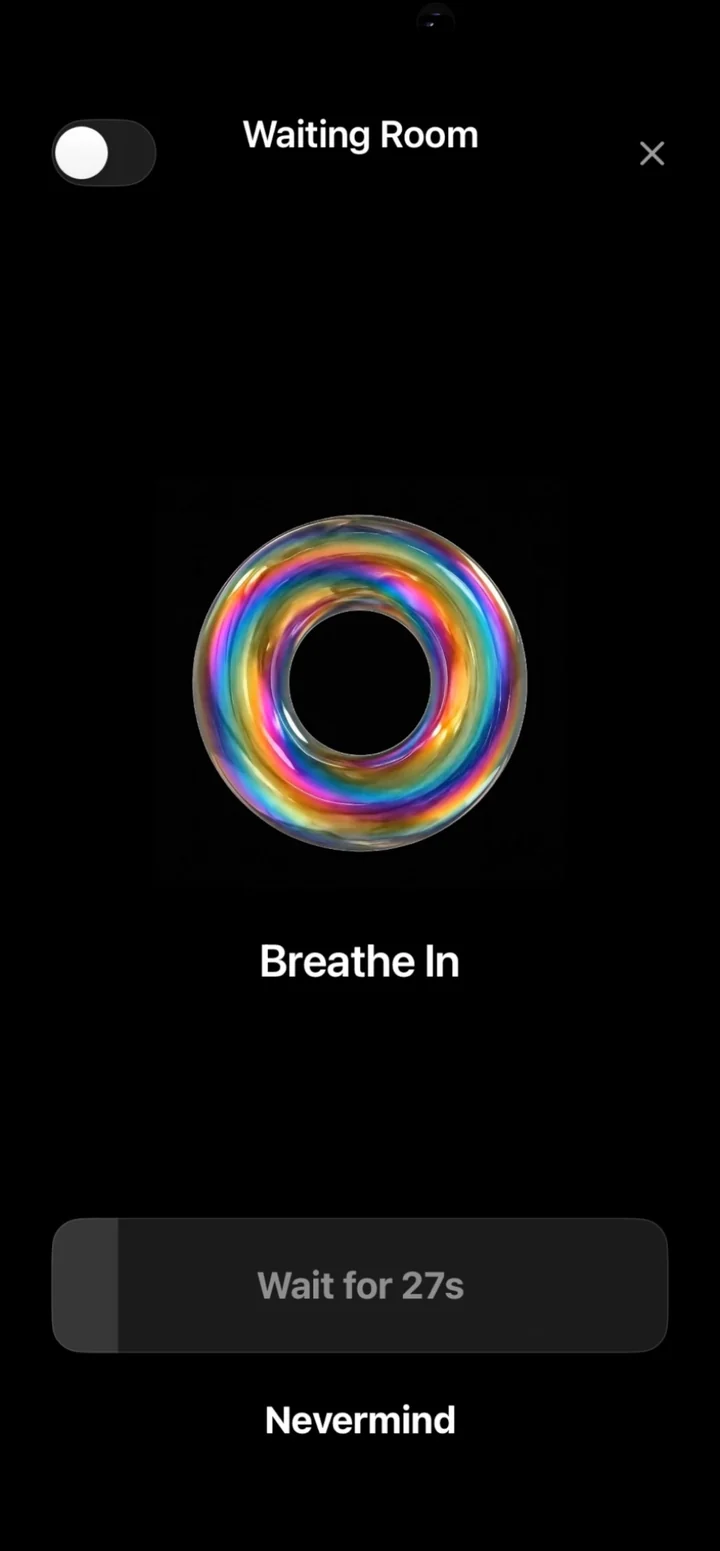
- With Pro, keep coming back the same day and the waiting room makes you wait a little longer each time, with a breathing animation.
- With Task Mode, you say what you opened the app to do. If you drift from your DMs into Reels, Nudge notices and nudges you back.
Try it: Nudge is free to download, and Timer Mode is free: it locks your apps and re-locks them when your time is up. Get Nudge on the App Store. iPhone, iOS 17.6 or later.
The honest summary
Pick one tactic for each problem: friction (so opening is a decision), a purpose (so the visit has an end), and enforcement (so the end actually happens). You don't need a better personality. You need better defaults.
Want a number to aim for? Try the screen time calculator and see what a daily budget gives back.