Screen Time limit not working? Why, and what actually helps
Usually it is working. It's just easy to skip. Apple's own guide says limits can be ignored once you reach them, unless a Screen Time passcode is set. Set a passcode (better: let someone else choose it), check you're using the right menu for your iOS version, and limit the website too. If a passcode is too strict for you, use friction that grows instead of a wall you'll learn to step over.
First: which iOS are you on?
iOS 27 (released September 14, 2026) renamed Screen Time's controls. Most advice online still describes iOS 26. Check in Settings > General > About.
| iOS 26 | iOS 27 | |
|---|---|---|
| How long | App Limits | Time Allowances (a daily total plus category budgets) |
| When | Downtime | Screen Time Schedule |
| Passcode | Screen Time > Lock Screen Time Settings | Screen Time > Manage Screen Time > Lock Screen Time Settings |
| Websites | Limit or block them separately | An allowance covers an app's own website, if the app declares one |
Why Screen Time limits feel broken
- Limits are soft by default. Apple says you can ignore a limit once you reach it. Without a passcode, more time is a tap away, and your thumb learns that tap fast.
- You know your own passcode. Then it's a speed bump, not a lock.
- One limit covers the whole group. 30 minutes on Social Media means 30 minutes total, not 30 per app.
- Always Allowed apps skip limits. If an app is on that list, its limit does nothing.
- The website is a side door. On iOS 26, limiting the Instagram app doesn't limit instagram.com in Safari.
- Share Across Devices. When it's on, your limits and reports are shared across your iPhone, iPad and Mac, which can make a limit look like it hit early.
- Bugs happen. People have reported limit bugs after iOS updates, including with iOS 27's new controls. A restart, or turning Screen Time off and on, sometimes helps.
Make it stricter on iOS 27
- Open Settings > Screen Time > Time Allowances.
- Set a daily total, then tap a category (like Social Media) and give it a smaller budget.
- Go to Manage Screen Time > Lock Screen Time Settings and have a friend type a 4-digit passcode. Add Passcode Recovery with your Apple Account so you can't get locked out of your own settings.
- Check Always Allowed and remove the apps you're trying to limit.
Make it stricter on iOS 26
- Open Settings > Screen Time > App Limits > Add Limit. Pick the apps (tap a category to choose single apps), tap Next, and set the time.
- Scroll down on the Screen Time screen, tap Lock Screen Time Settings, and have a friend set the passcode.
- After a passcode is set, open the limit again. Many people report a Block at End of Limit switch on its time screen. Turn it on if you see it.
- Close the website door: Content & Privacy Restrictions > App Store, Media, Web, & Games > Web Content > Limit Adult Websites, then add the site under Never Allow.
Steps are from Apple's iPhone guides, checked Oct 14, 2026. Menus shift between versions. If you can't find one, search for it in the Settings app.
When a passcode is too much
A passcode someone else holds is a real wall, and walls have a known failure: the day you really need the app, you ask for it back, it gets turned off "just for today," and it never comes back.
What tends to stick is friction you can live with:
- You can always get in, so there's no reason to tear the system down.
- Getting in takes a beat, so the automatic opens stop.
- The beat grows the more you come back in a day, so the fifth visit is harder than the first.
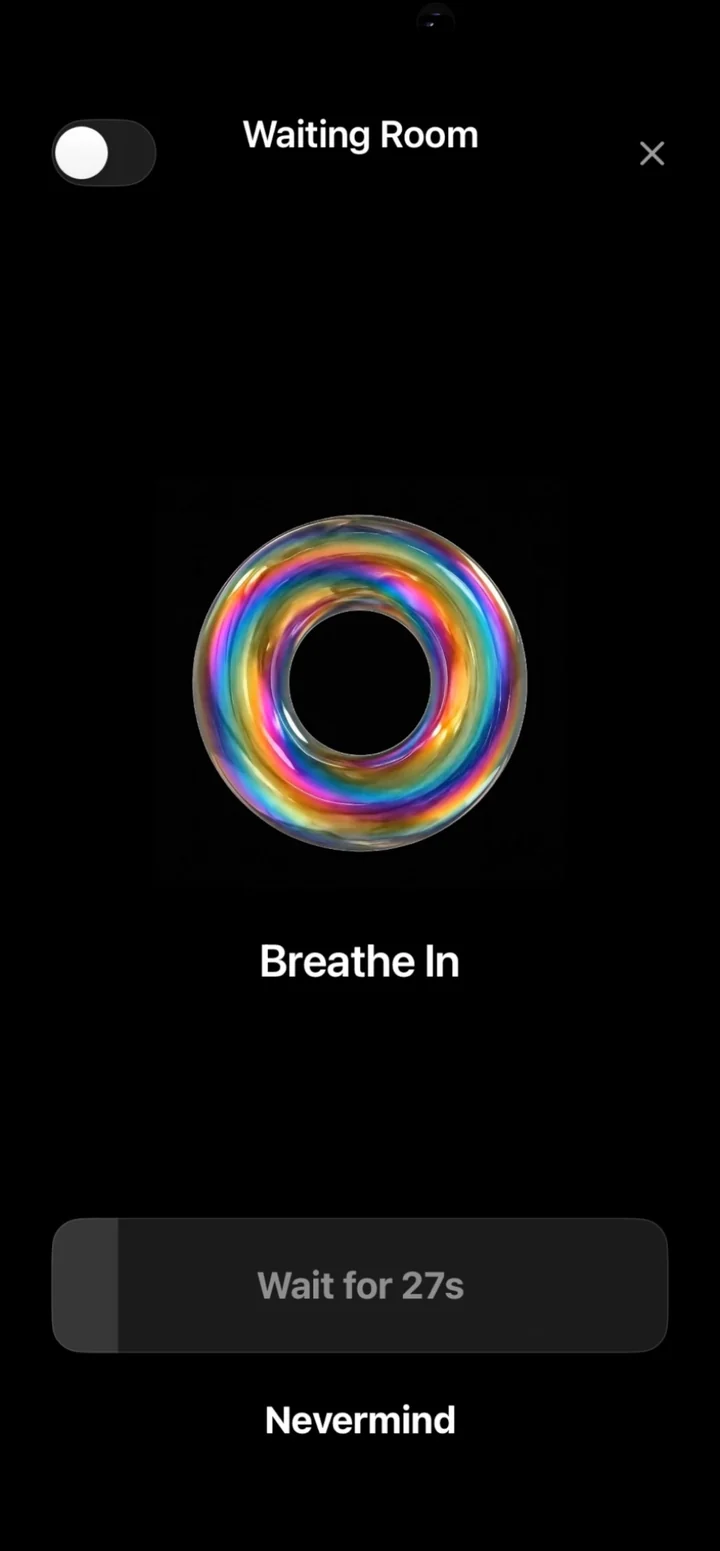
That's how Nudge works. Your apps stay locked, and opening one means choosing how long. With Pro's waiting room on Medium, your first unlock each day is instant, then each one adds 10 seconds, up to a minute, with a breathing animation while you wait. It resets at midnight.
Screen Time vs Nudge, side by side
| iPhone Screen Time | Nudge | |
|---|---|---|
| Price | Free, built in | Timer Mode free; Pro is a subscription |
| When time runs out | You can ignore it unless a passcode is set | The app locks again; to get back in, you choose a new time |
| Coming back again and again | Same limit all day | Pro: each unlock that day adds to the wait |
| Drifting inside an app | Can't tell DMs from Reels | Pro: Task Mode notices and nudges you back |
| Websites | Separate on iOS 26; declared sites on iOS 27 | Blocks each app's website automatically, plus any site you add |
You can use both. Plenty of people keep Screen Time's schedule for bedtime and use Nudge for the two or three apps that eat their day.