Start a Task Mode session
Short answer
Turn on Task Mode in Nudge, open a locked app, type what you're there to do, start the session, and allow screen broadcasting when iOS asks. Then use the app. If you drift, Nudge nudges you back. Task Mode is part of Nudge Pro.
Steps
- Switch to Task Mode in Nudge.
- Open a locked app. Its block screen says "Set task for [the app]." Tap through and tap the notification.
- Type or say your task in plain English: "reply to Sarah," "post my video," "only comedy or fitness content." Too vague ("Instagram") and Nudge asks you to be more specific.
- Pick how long (1, 2, 5, 10 or 30 minutes, an hour, or type your own) and tap "Start Task."
- Start the broadcast. The first time, Nudge explains how your screen is handled. Then iOS shows its screen-broadcast prompt: tap "Start Broadcast." A red indicator shows while the session runs.
- Use the app. Stay on task and Nudge stays out of the way.
Nudges and ending a session
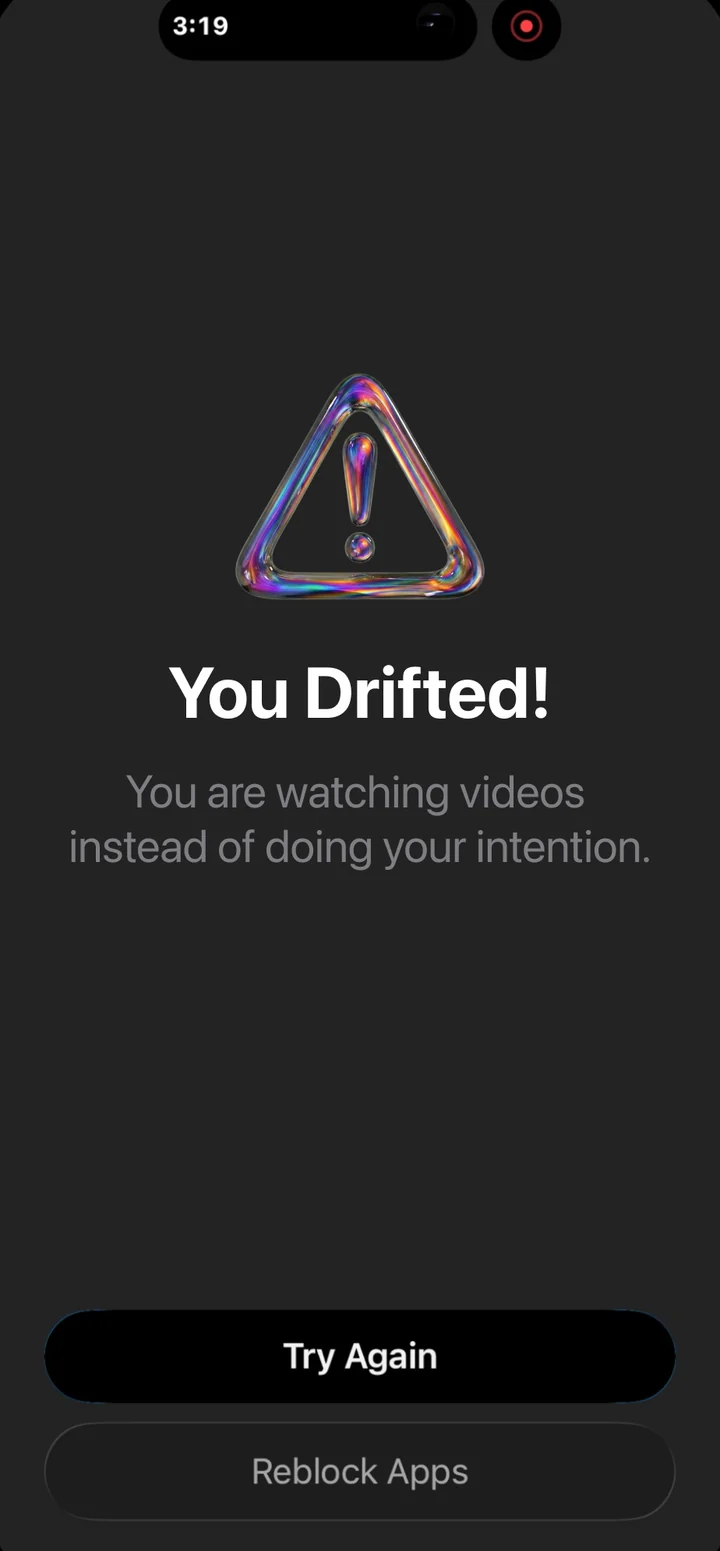
- Nudge checks your screen every few seconds. If it doesn't match your task a few checks in a row, Nudge covers the app with a nudge: your task, a one-line reason, and two buttons, "Try Again" or "Reblock Apps."
- Three nudges without getting back on task ends the session ("Three Strikes!") and the app locks. You can set this anywhere from 1 to 5.
- Leave the app when you're done and the session ends on its own. It also ends when your time is up or you stop the broadcast.
Task Mode hours
Task Mode time comes from an allowance, because every screen check costs real money to run: 8 hours a month on monthly and yearly plans, 2 hours a week on the weekly plan, and 4 hours during the 7-day free trial. Subscribers can buy extra hours (they roll over monthly). If you run out, timers and waiting rooms keep working.
Privacy
Frames are checked and thrown away during the session. Your screen is not stored. Not by Nudge. Not by Google. The details.