Open a locked app (Timer Mode)
Short answer
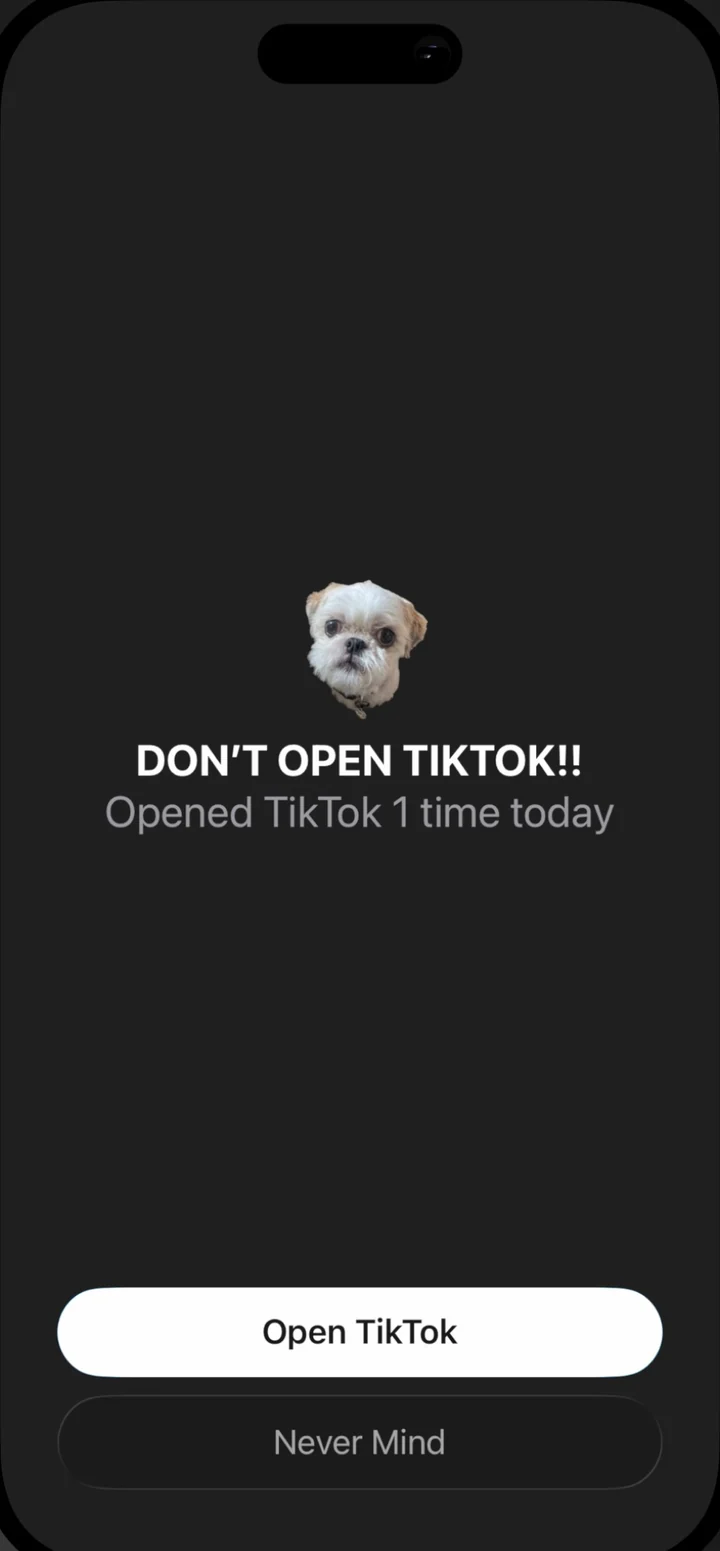
Open the locked app and you'll see Nudge's block screen. Tap through, tap the notification from Nudge, choose how long you want, and you're back in the app. When your time is up, it locks again on its own.
Step by step
- Open the app as usual. Instead of the app, you'll see Nudge's block screen: "Set time limit for [the app]," with how many times you've opened it today.
- Tap "Open [the app]." iPhone doesn't let a block screen open another app directly, so Nudge sends you a notification.
- Tap the notification ("Tap here to open..."). It opens Nudge.
- Wait, if there's a waiting room. With Nudge Pro on Medium, Hard or Custom, you may wait first, with a breathing animation. How levels work.
- Choose how long. Tap a preset (1, 2, 5 or 10 minutes by default, and you can change them) or type up to 60 minutes, then tap "Unblock Apps." Nudge sends you back to the app, and a countdown shows on your Lock Screen.
- Time's up. The app locks again, even if Nudge is closed.
Good to know
- Unlock from an app's block screen and only that app opens, with its own timer. Open Nudge directly and you can unlock all your blocked apps at once.
- Changed your mind? Tap "Never Mind" on Nudge's screen. That's the habit you're building.
- Nothing happens when you tap unlock? Notifications for Nudge are probably off. Fix it here.